How to use CarouselGem: Create Viral LinkedIn Carousels
Learn how to master CarouselGem with this step-by-step tutorial. Go from an idea to a highly converting, beautiful PDF carousel in minutes using AI.
Creating highly engaging LinkedIn carousels used to take hours of complicated design work in Photoshop, Illustrator, or Canva. With CarouselGem, you can turn a single idea into a multi-slide PDF document ready to rake in thousands of impressions in just minutes.
In this quick step-by-step guide, we'll walk you through the intuitive, mobile-ready CarouselGem Studio, showcasing exactly how it transforms your ideas into viral content.
Step 1: Write Your Content & Manage Layouts
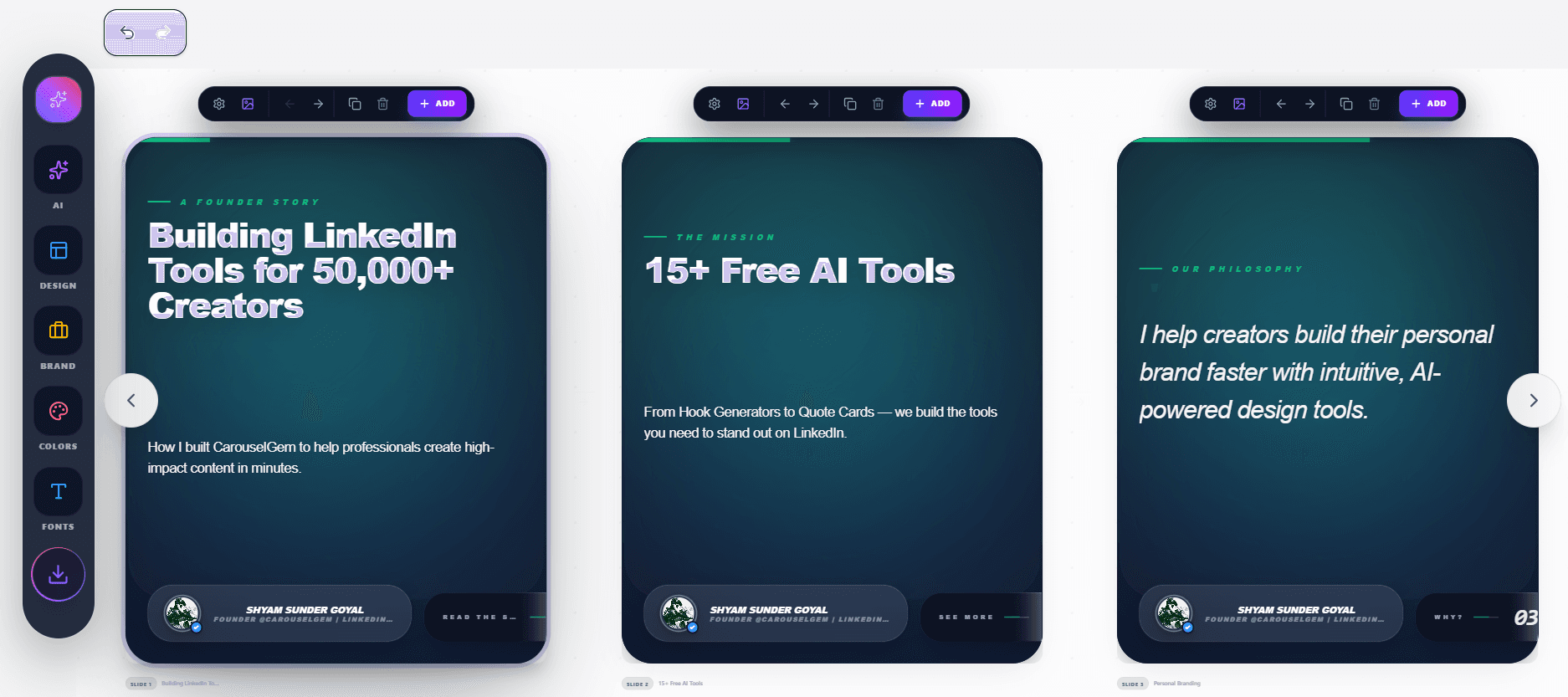
When you enter the CarouselGem Studio, you are immediately presented with a fully interactive mobile-like viewport. This is where the magic starts. From the first slide to the last, you have complete control over your content string.
Step 2: Leverage the AI Magic Writer
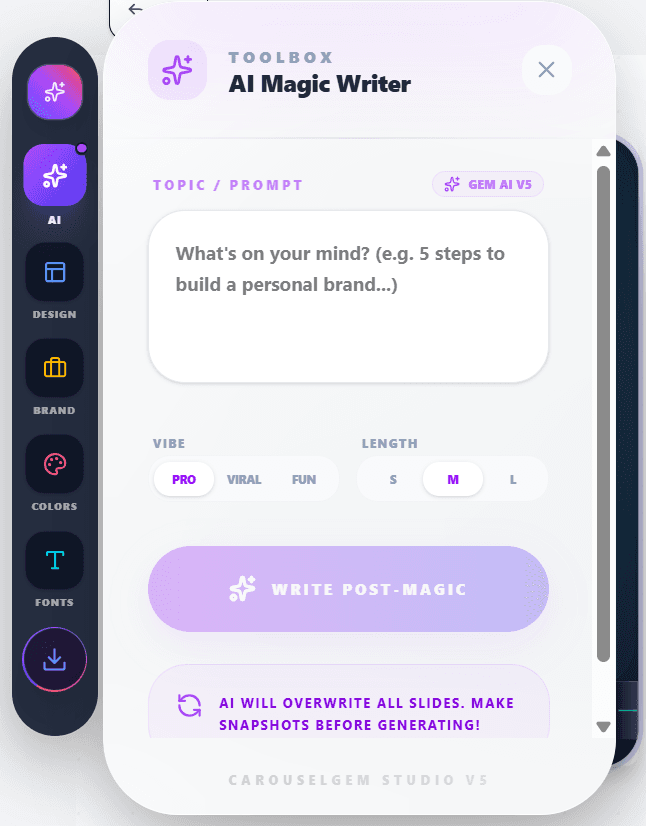
Are you out of ideas or struggling to formulate the perfect hook? Our platform features an integrated AI Magic Writer. Simply click the "Rewrite with AI" interface on any text block.
Step 3: Select an Eye-Catching Template
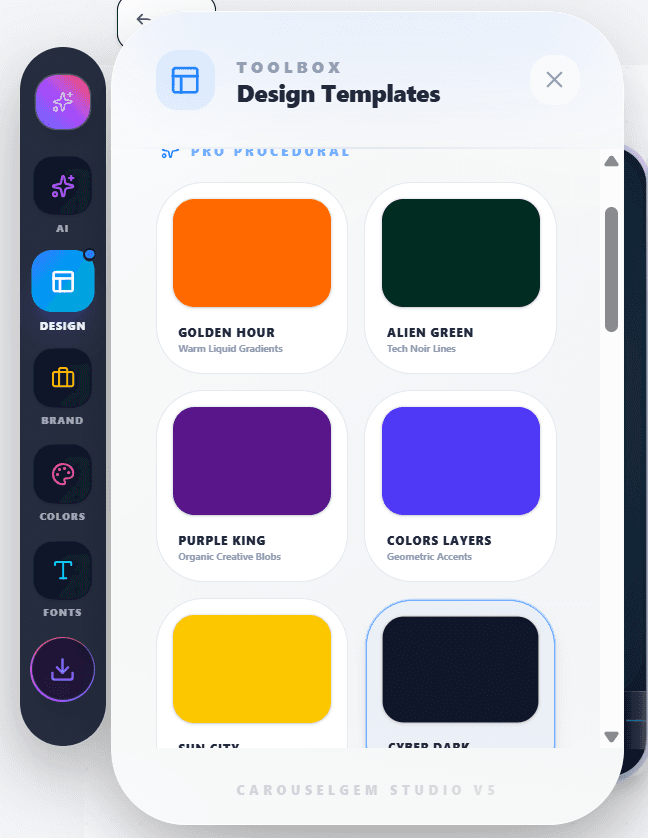
Design is king on LinkedIn. We offer dozens of hand-crafted layouts explicitly designed to stop the scroll. Navigate to the "Templates" tab and choose from Grid style layouts, minimalist gradients, and more.
Step 4: Establish Your Brand Identity
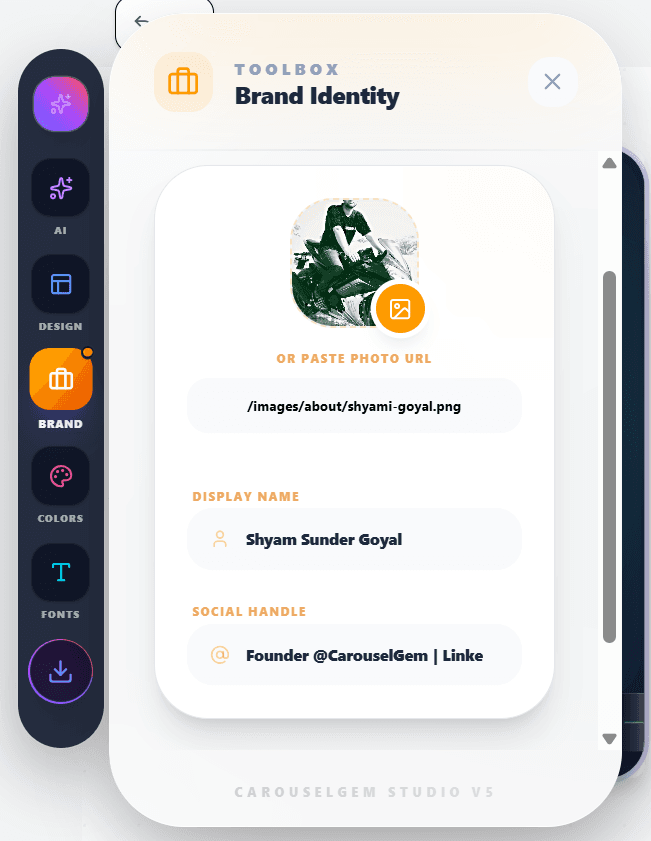
Your carousel won't look like yours without your brand identity. Switch to the "Branding" tab and securely import your personal avatar, write your handle, and sync it across all slides automatically.
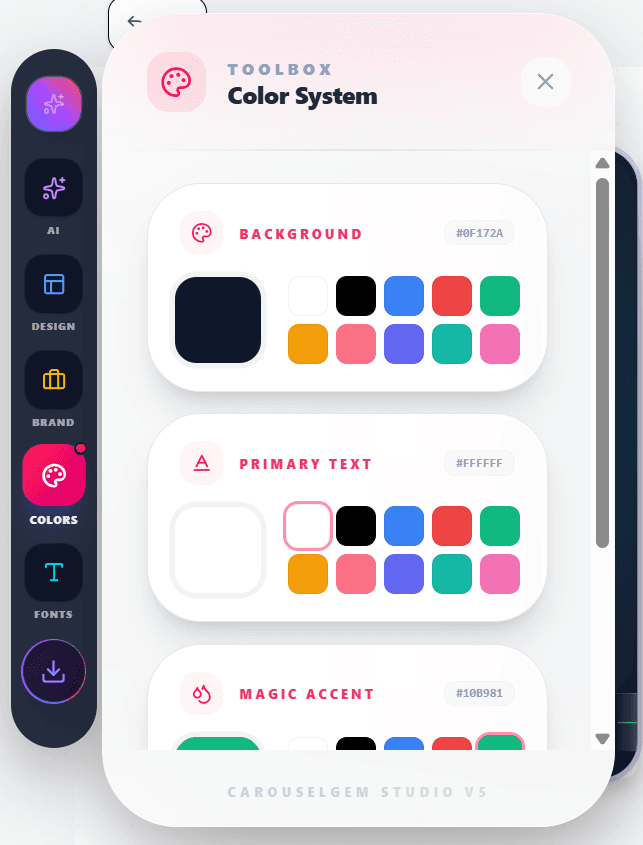
Step 5: Apply Your Brand Colors
Once you are structurally ready, make it uniquely yours through the Color Systems tab. Use predefined aesthetic palettes or your own custom hex codes.
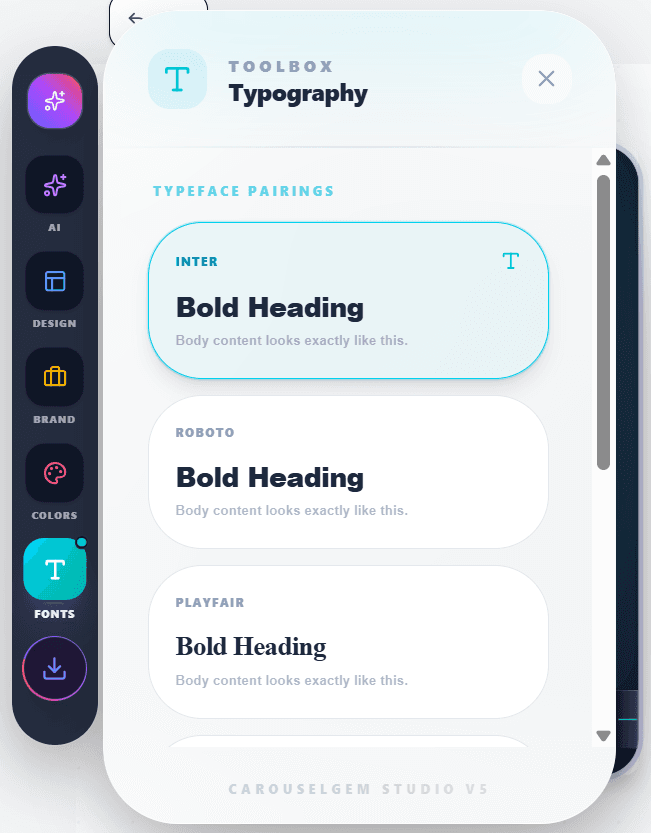
Step 6: Choose Your Typography
Nothing screams professionalism like correctly paired modern typography. Test out premium font pairings like Inter, Syne, and Montserrat optimized for mobile visibility.
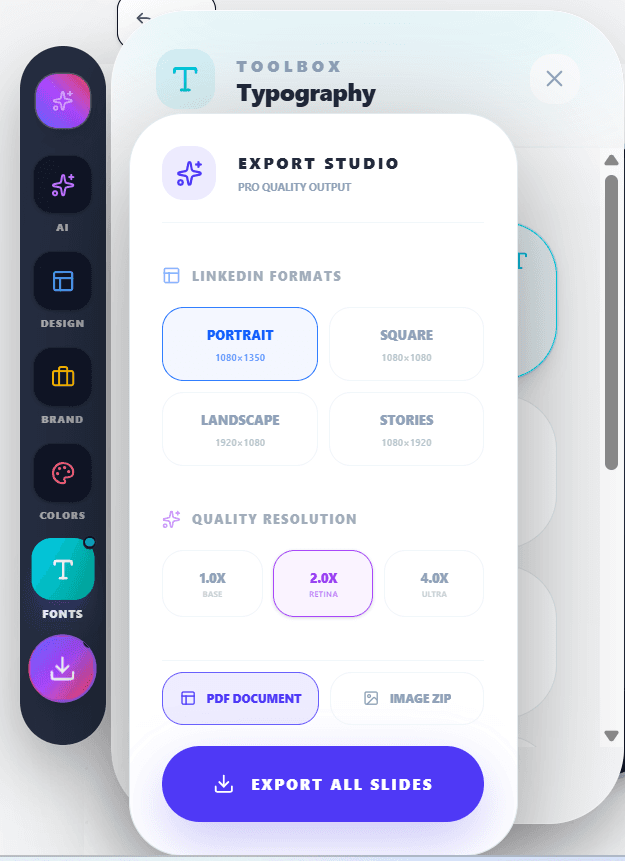
Step 7: Render and Export to High-Res PDF
Click the giant Export to PDF button. CarouselGem packages your slides into a continuous document. Upload this PDF directly into LinkedIn for an interactive viewer.
Ready to Build?
Start your journey as a top LinkedIn creator today and utilize the power of CarouselGem.
Frequently Asked Questions
Everything you need to know about using CarouselGem.
Do I need design skills to use CarouselGem?
Not at all. CarouselGem is specifically built to bypass complex design layers. If you can type out a basic document, you can generate a professional design.
Are the PDFs optimized for LinkedIn?
Yes, our export engine renders all slides as a standard High-DPI PDF document with perfectly scaled aspects, ensuring zero blur.
What is the AI Magic Writer?
The AI Magic Writer is a built-in assistant that helps brainstorm, rewrite, and condense your carousel slides instantly.
Can I remove the watermark from the export?
Depending on your plan tier, you can entirely disable CarouselGem branding and fully white-label your PDF carousels.
Recommended Tools
Ready to go viral?
Join 50,000+ creators using CarouselGem to build high-converting carousels in seconds.
Start Creating for Free