How to Post a Carousel on LinkedIn (2026 Tutorial)
Learn exactly how to post a carousel on LinkedIn to maximize reach. Our 2026 guide shows you the hidden PDF upload method for viral, swipeable carousel posts.
One of the most common mistakes creators make on LinkedIn is uploading their carousel as a series of images. On LinkedIn, true interactive carousels are actually Document Posts.
When you upload a PDF as a document, LinkedIn creates a beautiful, swipeable viewer that allows users to engage with your content without leaving their feed. In this guide, we will show you how to upload your CarouselGem PDF correctly.
Step 1: Start Your Post & Select Documents
Go to your LinkedIn home feed and click on "Start a post." In the editor toolbar at the bottom, look for the Add a document icon (the page symbol). Do not click the image icon!
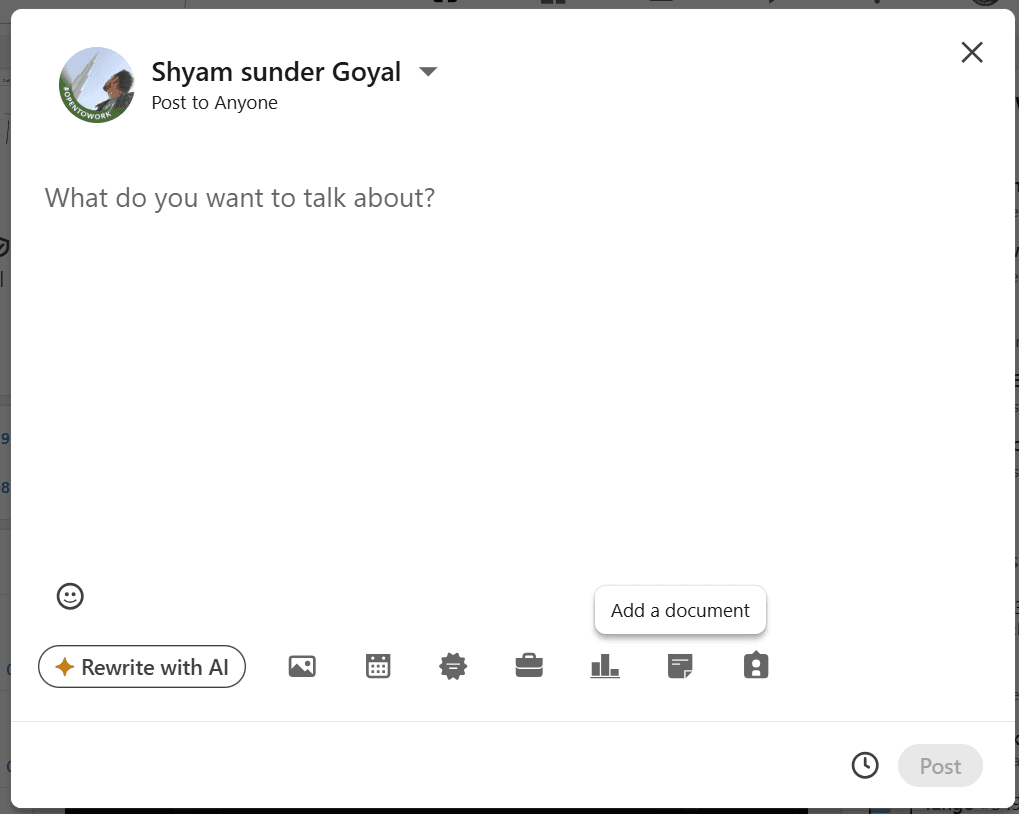
Step 2: Upload Your CarouselGem PDF
A "Share a document" window will appear. Click the Choose file button and navigate to the PDF you just exported from CarouselGem. This PDF contains all your slides in high resolution.
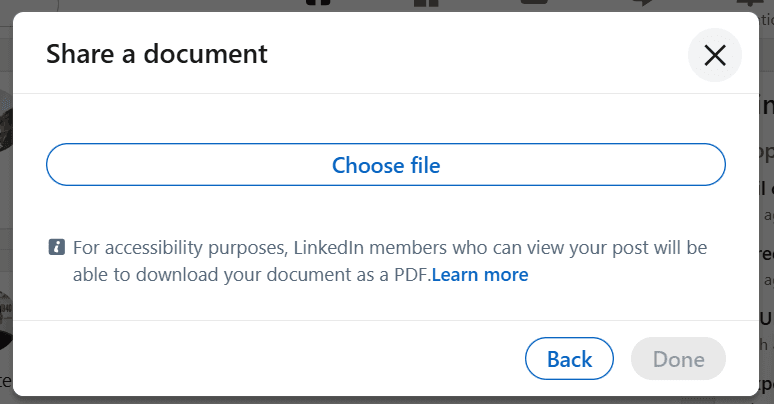
Step 3: Add a Title & Preview Slides
Once the upload is complete, you MUST add a Document title. This is indexed by Google and LinkedIn search, so make it descriptive. You can also use the arrows to preview and double-check all your slides.
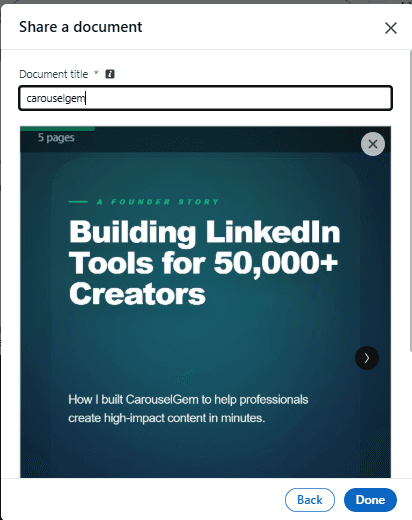
Step 4: Write Your Caption & Post
After clicking "Done", your carousel is attached. Now, write a compelling hook in the text area, add relevant hashtags, and click Post to share your creation with the world.
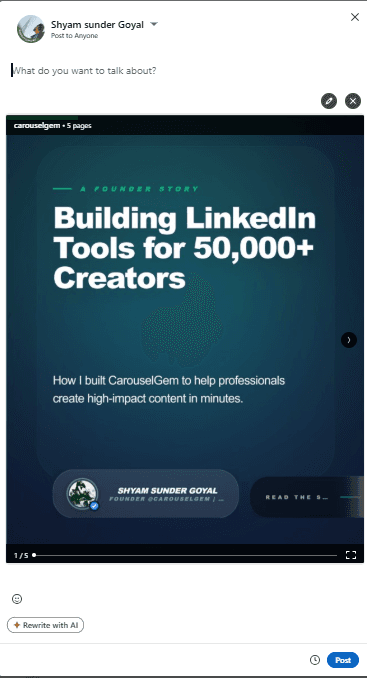
Conclusion
By following these steps, you ensure that your LinkedIn audience gets the full interactive experience. Ready to create your next viral post? Head over to the CarouselGem Studio now!
Frequently Asked Questions
Everything you need to know about using CarouselGem.
Why should I upload a PDF instead of images?
LinkedIn carousels only function correctly (swipeable player) when uploaded as PDFs. Multiple images appear as a static grid, which has significantly lower engagement.
What is the maximum file size for a LinkedIn document?
LinkedIn currently supports documents up to 100MB, but we recommend keeping your CarouselGem exports under 10MB for the fastest loading speeds on mobile.
Can I edit the document after posting?
No. LinkedIn does not allow you to change the attached document once a post is live. You must delete the post and re-upload if you find a typo.
Recommended Tools
Ready to go viral?
Join 50,000+ creators using CarouselGem to build high-converting carousels in seconds.
Start Creating for Free