Cómo Publicar un Carrusel en LinkedIn (Tutorial 2026)
Aprende exactamente cómo publicar un carrusel en LinkedIn para maximizar tu alcance. Nuestra guía 2026 te muestra el método oculto de subida PDF para posts deslizables virales.
One of the most common mistakes creators make on LinkedIn is uploading their carousel as a series of images. On LinkedIn, true interactive carousels are actually Document Posts.
When you upload a PDF as a document, LinkedIn creates a beautiful, swipeable viewer that allows users to engage with your content without leaving their feed. In this guide, we will show you how to upload your CarouselGem PDF correctly.
Paso 1: Inicia Tu Post y Selecciona Documentos
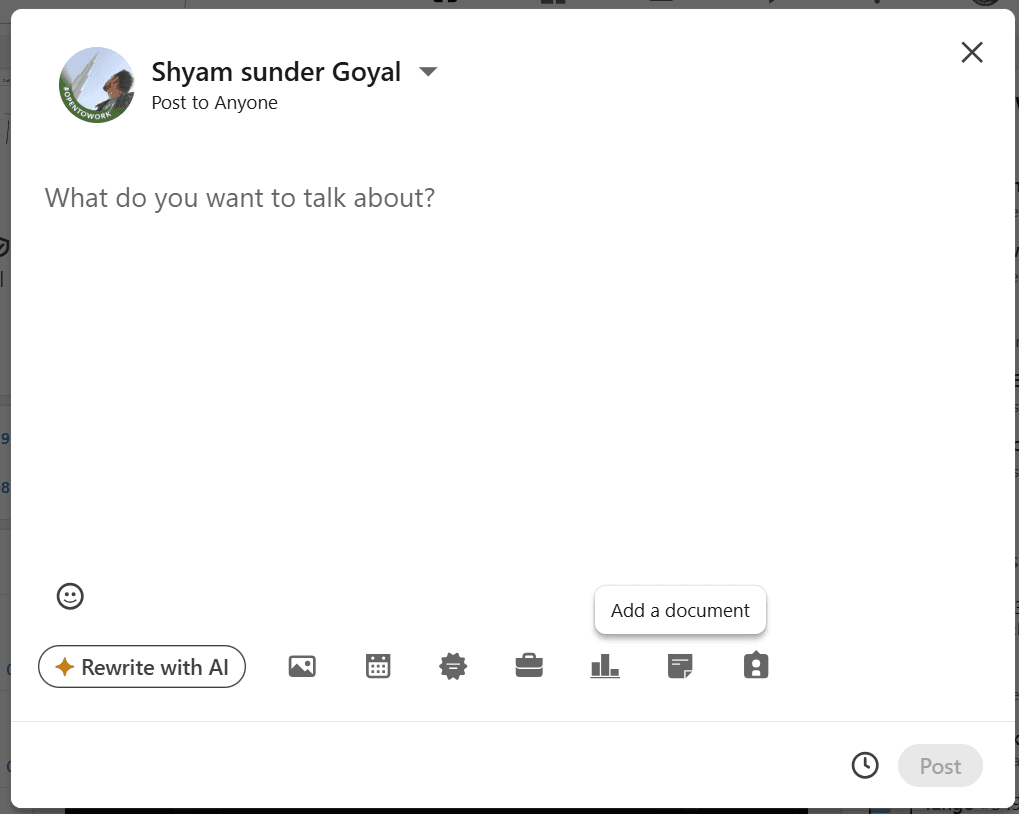
Go to your LinkedIn home feed and click on "Start a post." In the editor toolbar at the bottom, look for the Add a document icon (the page symbol). Do not click the image icon!
Paso 2: Sube Tu PDF de CarouselGem
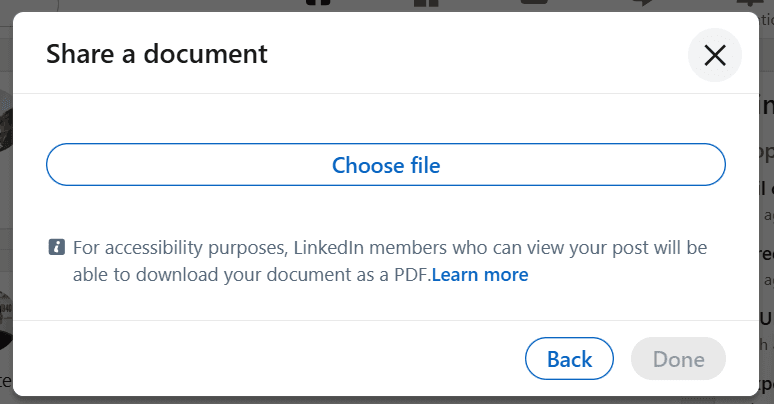
A "Share a document" window will appear. Click the Choose file button and navigate to the PDF you just exported from CarouselGem. This PDF contains all your slides in high resolution.
Paso 3: Añade un Título y Previsualiza las Diapositivas
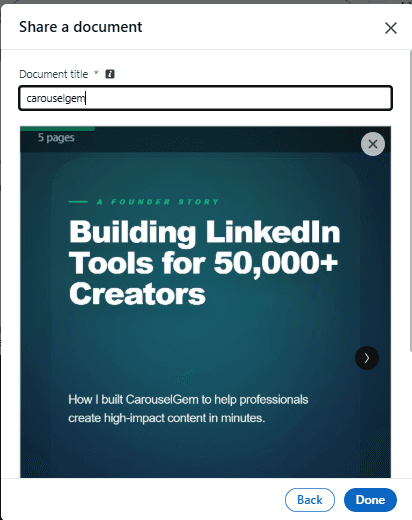
Once the upload is complete, you MUST add a Document title. This is indexed by Google and LinkedIn search, so make it descriptive. You can also use the arrows to preview and double-check all your slides.
Paso 4: Escribe Tu Caption y Publica
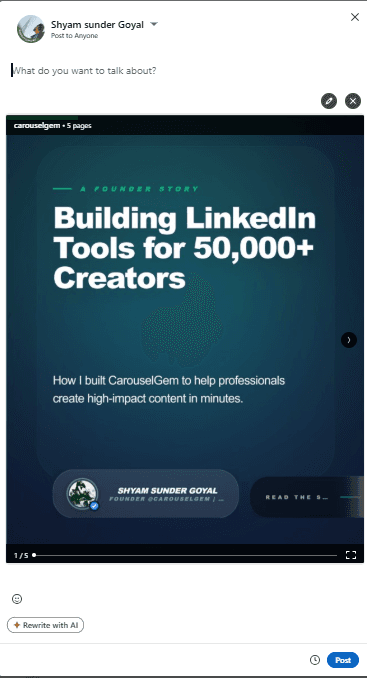
After clicking "Done", your carousel is attached. Now, write a compelling hook in the text area, add relevant hashtags, and click Post to share your creation with the world.
Conclusión
By following these steps, you ensure that your LinkedIn audience gets the full interactive experience. Ready to create your next viral post? Head over to the CarouselGem Studio now!
Preguntas Frecuentes
Todo lo que necesitas saber sobre el uso de CarouselGem.
¿Por qué debería subir un PDF en vez de imágenes?
Los carruseles de LinkedIn solo funcionan correctamente (reproductor deslizable) cuando se suben como PDFs. Múltiples imágenes aparecen como una cuadrícula estática, lo que tiene significativamente menor engagement.
¿Cuál es el tamaño máximo de archivo para un documento de LinkedIn?
LinkedIn actualmente soporta documentos de hasta 100MB, pero recomendamos mantener tus exportaciones de CarouselGem bajo 10MB para las velocidades de carga más rápidas en móvil.
¿Puedo editar el documento después de publicar?
No. LinkedIn no permite cambiar el documento adjunto una vez que un post está publicado. Debes eliminar el post y volver a subirlo si encuentras un error.
Herramientas Recomendadas
¿Listo para hacerte viral?
Únete a más de 50.000 creadores usando CarouselGem para crear carruseles de alta conversión en segundos.
Empieza a Crear Gratis